What pair programming with OpenAI Codex looks like
OpenAI Codex can work alongside the code already open in your editor. You can ask it to explain a file, investigate a bug, suggest an implementation, or make a focused change. The useful part of the pairing is the loop: a person gives context and direction, OpenAI Codex helps with the code, and the person reviews and validates the result.
This guide uses the OpenAI Codex extension in Visual Studio Code and compatible editors. Exact labels can change as the extension evolves, so use the official setup guide linked below if your screen differs.
Benefits of pairing
Pair programming gives two people a shared view of the problem and the code. Bringing an AI tool into that loop can make it easier to explore unfamiliar code, test an idea, or get a first draft to review—but the benefits depend on how the team works with it.
- Surface assumptions early. Talk through the problem and constraints before implementation hardens around a guess.
- Share context. When two teammates pair, both can build familiarity with the code and explain the reasoning behind a change.
- Learn while doing. Ask OpenAI Codex to trace unfamiliar behavior or explain a proposed change, then verify the explanation against the code.
- Review continuously. Inspect small diffs as they are proposed instead of waiting until a large change is complete.
- Keep a human decision-maker. Pairing helps people reason together; an AI tool can assist, but it does not share a team’s accountability.
Before you start
- Install a supported editor such as Visual Studio Code, or a compatible VS Code editor.
- Open a local project you are allowed to work on, and make sure Git is available for reviewing and reverting changes.
- Have an account or authentication method supported by your organization and the OpenAI Codex setup flow. Available access can depend on your plan and workspace settings.
- Check your team’s rules for using AI tools with source code, customer information, and secrets before opening a repository.
Start from a clean working tree when practical. If you already have uncommitted work, note what changed before asking OpenAI Codex to edit files so you can distinguish your changes from its suggestions.
Give OpenAI Codex project guidance
An AGENTS.md file is a plain Markdown document for durable, project-specific instructions to coding agents. Put one at the repository root to describe guidance that applies across the project. In a large repository, a more specific AGENTS.md can live in a subdirectory and add instructions for that part of the codebase.
Keep it practical and current. Useful guidance includes the project structure, conventions, commands that are known to work, how to validate a change, and important boundaries. It helps OpenAI Codex work with the team’s context without repeating the same setup in every prompt.
# AGENTS.md

## Project
- This repository contains [brief purpose and main technologies].

## Working conventions
- Follow the patterns used by nearby code.
- Keep changes focused and explain meaningful trade-offs.

## Validation
- Run: [verified check command]

## Boundaries
- Never commit credentials or secrets.
- Do not change production infrastructure without explicit approval.
These are example headings and placeholders, not instructions to copy without checking. Replace them with accurate project details. Treat AGENTS.md as guidance, not a permission or security boundary: review commands and diffs, and use your editor or organization’s controls to manage access.
See the OpenAI Codex prompting guide’s AGENTS.md section ↗ and the AGENTS.md format guide ↗.
Install the extension
- Open the editor’s Extensions view.
- Search for OpenAI Codex.
- Check that the publisher is OpenAI, then choose Install.
- When prompted, sign in using an option supported by your account and workspace.
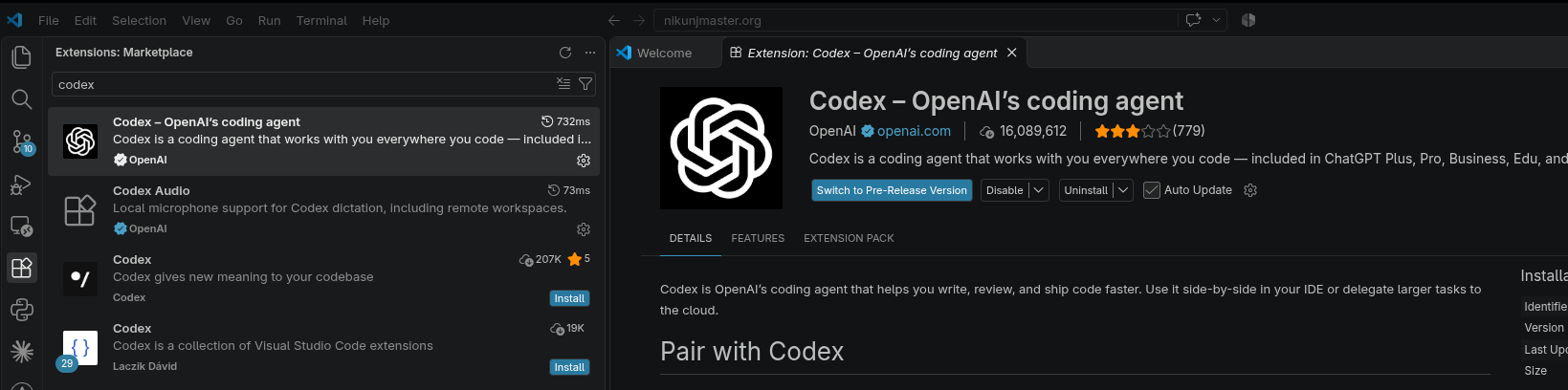
Use the official OpenAI Codex listing in the Visual Studio Marketplace ↗ or follow OpenAI’s IDE extension setup guide ↗. Avoid similarly named extensions from unverified publishers.
Open the OpenAI Codex sidebar
- Open the project folder in the editor, rather than an isolated source file.
- Select the OpenAI Codex icon to open its sidebar.
- If you cannot see the icon, open the Command Palette and run
Codex: Open Codex Sidebar. - Complete sign-in if asked. Follow your organization’s access policy and the choices shown in the editor.
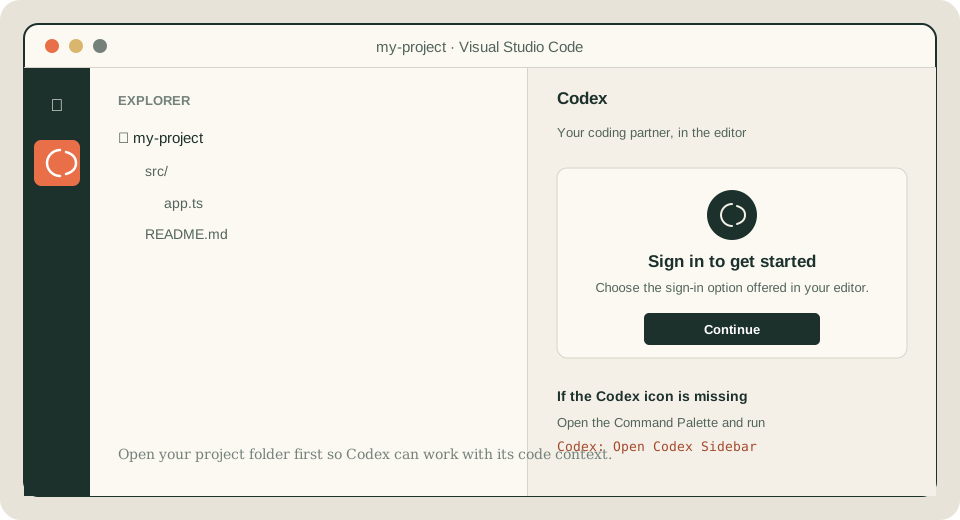
Keeping OpenAI Codex beside the project makes it easier to work with open files and selected code as context. Before sending a request, confirm that the files and information you are sharing are appropriate for your organization’s policies.
Start with a small task
Give OpenAI Codex a clear goal, relevant context, and boundaries. A small first request helps you understand how it behaves in your repository before handing it a broader change.
Example request
“Please trace how this endpoint handles missing records. Explain the current behavior first. Then suggest the smallest safe change, identify any tests that should cover it, and wait for my approval before editing.”
Useful requests often say:
- What to solve: describe the behavior, bug, or outcome in plain language.
- Where to look: point to a file, feature, error, or relevant code selection.
- What to preserve: mention compatibility, conventions, constraints, or files to leave alone.
- How to proceed: ask for explanation or a plan first when the task is unfamiliar or broad.
Review changes together
When OpenAI Codex proposes or makes a change, read its explanation and inspect the diff in the editor. Ask questions about decisions you do not understand. Keep only changes that fit the intended behavior and the project’s conventions.
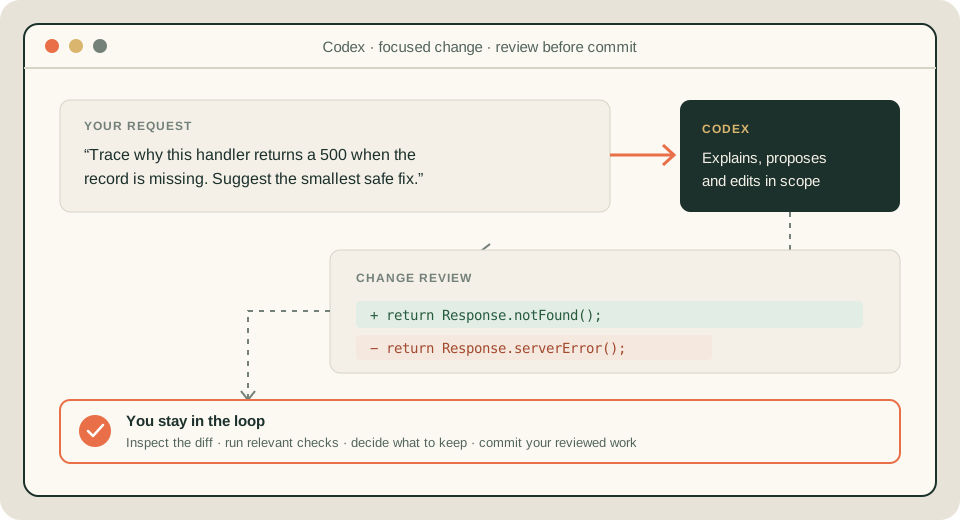
Ask OpenAI Codex to help identify relevant checks, then run the checks that make sense for the change. A successful command does not replace code review, and a plausible explanation does not prove the code is correct.
A team workflow that works
- Agree on the task. A teammate explains the problem, expected behavior, and constraints.
- Explore before editing. Ask OpenAI Codex to summarize relevant code or propose a plan for unfamiliar work.
- Work in small steps. Make one focused change at a time and ask follow-up questions as needed.
- Review as a pair. Read the diff together, discuss tradeoffs, and reject edits that are unclear or out of scope.
- Validate and record. Run suitable checks, inspect the final Git diff, and commit through the team’s normal process.
For a live pairing session, one person can drive the editor while the other reviews the prompt, assumptions, and proposed changes. Swap roles as the work moves on. This keeps the session collaborative and gives both people a chance to question the result.
Keep the work safe and maintainable
- Do not paste credentials, tokens, private keys, or sensitive customer data into a prompt.
- Follow the organization’s policy for source code and approved AI tools; check with your administrator if access or data handling is unclear.
- Review commands before running them, especially commands that delete data, change infrastructure, install software, or access external systems.
- Keep a clean, reviewable Git diff and use normal code review and release controls.
- Ask for an explanation when a change is difficult to understand; do not merge code solely because an agent produced it.
Other pair-programming tools
OpenAI Codex is one option for working with an AI coding partner. These tools offer other ways to bring code help or agent workflows into a developer’s daily work. This is a starting list, not a ranking; features and supported editors change, so check each tool’s current documentation.
- GitHub Copilot ↗ — offers code suggestions, chat, and agent features in supported IDEs, including Visual Studio Code and JetBrains IDEs.
- Cursor ↗ — an AI code editor whose Agent can work across project files on tasks such as implementing features, refactoring, and debugging.
- Claude Code ↗ — Anthropic’s coding agent for working with a codebase, editing files, and running development commands.
- JetBrains AI Assistant ↗ — brings AI chat, in-editor help, and coding agents into JetBrains IDEs.
- Google Antigravity ↗ — Google’s agentic development platform, available as an editor extension for VS Code and several other IDEs as well as a standalone environment.
- Meta Muse Code ↗ — Meta’s terminal-based, multi-agent coding tool, designed to work with its Muse models.
Before adopting any tool at work, confirm it is approved for your team’s code and data, understand its access and review controls, and agree on how changes will be validated.
Pricing and budgeting
AI coding tools do not all charge in the same way. Some bundle a usage allowance into a subscription; some meter extra model use with credits or API billing; organizations may have separate controls or contracts.
- OpenAI Codex ↗ — usage is included with eligible ChatGPT plans, with optional credits when available; API-key usage follows API billing.
- GitHub Copilot ↗ — plan-based access with AI-credit allowances for some agent and advanced features; limits and additional usage options vary by plan.
- Cursor ↗ — subscriptions include a usage pool; some third-party model use can be billed separately.
- Claude Code ↗ — can use eligible Claude plan allowances or Anthropic API billing, depending on how it is set up.
- JetBrains AI Assistant ↗ — subscription tiers include AI-credit quotas, with top-ups or other provider options depending on setup.
- Google Antigravity ↗ — an individual tier is listed at no charge with basic usage limits; paid and organization options provide different limits and billing.
- Meta Muse Code ↗ — check the current account and model terms on Meta’s developer site before estimating team costs.
Estimate monthly cost as licensed seats plus any expected credit or API overage. Run a small pilot using representative tasks, track actual usage and review time, and check whether admin, privacy, and support requirements change the plan you need. Rates, limits, and plan availability change, so confirm them with each provider before purchasing.
Other editors
The exact setup depends on the IDE. OpenAI’s current documentation lists the OpenAI Codex extension for VS Code and compatible editors, and describes separate integrations for JetBrains IDEs and Xcode. Check the official guide for your editor instead of assuming the VS Code steps or labels apply unchanged.
Official references
Projects on GitHub
I use pair programming to build and maintain projects. Browse my GitHub repositories to see the code and ongoing work.
Use the tool to learn the code, make the work easier to discuss, and keep the final judgment with the people responsible for shipping it.